
Master Calendar
Stay Connected and Informed: Subscribe to our Google Calendars to sync rehearsal schedules, performance times, and event updates directly to your personal device. To keep your schedule clean, you can choose to subscribe only to the calendars that pertain to your family.
For example, parents and students can subscribe to both practice and performance schedules to manage daily logistics, while grandparents can subscribe exclusively to the performance calendar to stay informed about upcoming shows and games. Staying connected ensures our musicians are supported and helps every family member plan ahead with confidence.
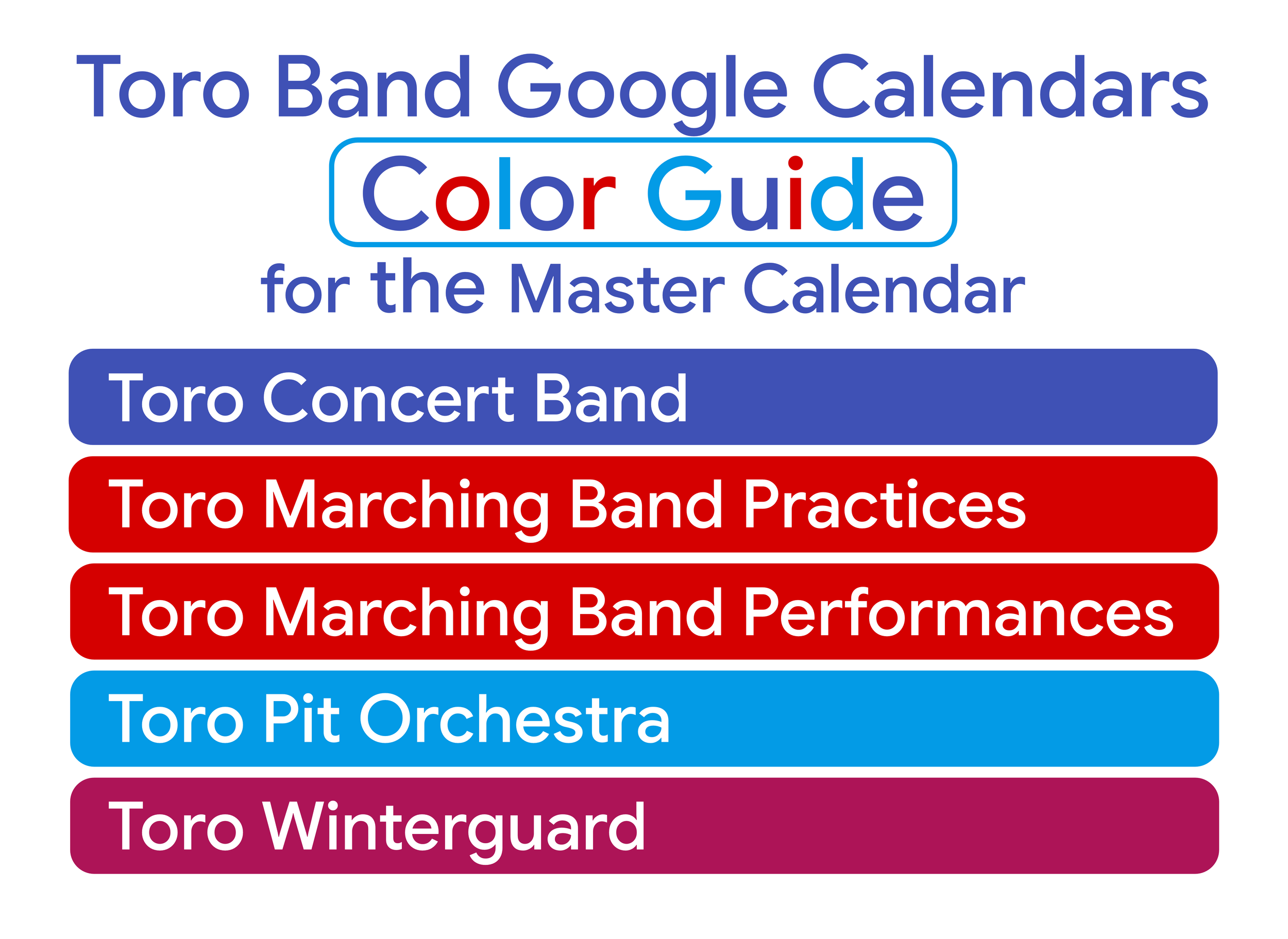
Google Calendar Links:
Toro Concert Band: Includes all concert band performance dates and related in-school events.
Toro Marching Band Practices: Includes all marching band rehearsals, sectionals, and special practices.
Toro Marching Band Performances: Marching band performance dates; football games, competitions, parades, and special events.
Toro Winterguard: Schedule for Winterguard practices, performances, and competitions.
Toro Pit: Includes all 4th-quarter pit orchestra rehearsals, technical runs, and musical production performances.
How to subscribe to a Google Calendar
Step 1: Add the Calendar (Desktop or Browser Required)
Google does not allow you to subscribe to new calendars directly through the mobile app
Method 1: ‘Add Calendar’ Link
If you want to subscribe to all the calendars: Click in the bottom left corner of the large Calendar at the top of the page where it says” Add to Google Calendar”. This will open your Google Calendar on your computer.
If you want to subscribe to select calendars, click on the links above to open and add them individually.
After adding the calendar, you may need to enable it so that it displays in your calendar. On the left sidebar, click the v icon next to My calendars.
Ensure that the checkmark next to this new calendar is checkmarked.
Hover over the shared calendar and click the three vertical dots (Options).
Click Settings and sharing. (You can edit the color of the calendar here as well. It will load in a random color.)
Scroll down to the Calendar notifications section.
Click Add notification under "Event notifications" or "All-day event notifications."
Choose your preference: Notification (pop-up) or Email.
Set your desired timeframe (e.g., 15 minutes before).
Method 2: Using a Calendar Link (URL)
Open Google Calendar on your computer.
On the left sidebar, find Other calendars and click the + icon next to it.
Select From URL.
Paste the web address (URL) of the calendar you want to subscribe to into the field. (All links are above)
Click Add calendar. It will appear on your left sidebar
Ensure that the checkmark next to your desired calendar is checkmarked.
Hover over the shared calendar and click the three vertical dots (Options).
Click Settings and sharing. (You can edit the color of the calendar here as well. It will load in a random color.)
Scroll down to the Calendar notifications section.
Click Add notification under "Event notifications" or "All-day event notifications."
Choose your preference: Notification (pop-up) or Email.
Set your desired timeframe (e.g., 15 minutes before).
Step 2: Enable the new Calendar on your Phone
Once you have subscribed to the calendar, use these steps to ensure you can see the events on your phone
Android Phone:
Open the Google Calendar app on your Android Phone.
Tap the menu icon (three horizontal lines) in the top left corner.
Ensure that the checkmark next to your newly added calendar is checkmarked.
Scroll down and tap Settings.
Tap the name of the new calendar you just added.
Make sure the Sync toggle is switched ON.
You can also modify or add default notification options for events or edit the color of the calendar here as well. It will load in a random color.
iPhone:
Open the Google Calendar app on your iPhone.
Tap the menu icon (three horizontal lines) in the top left corner.
Scroll down and tap Settings.
Tap the name of the new calendar you just added.
Make sure the Sync toggle is switched ON.
You can also modify or add default notification options for events or edit the color of the calendar here as well. It will load in a random color.
(Note: If you are using the native Apple Calendar app on your iPhone and want this to show up there, go to your iPhone Settings > Calendar > Accounts, tap your Gmail account, and ensure the Calendars toggle is turned on)